How to Reset Samsung Washing Machine
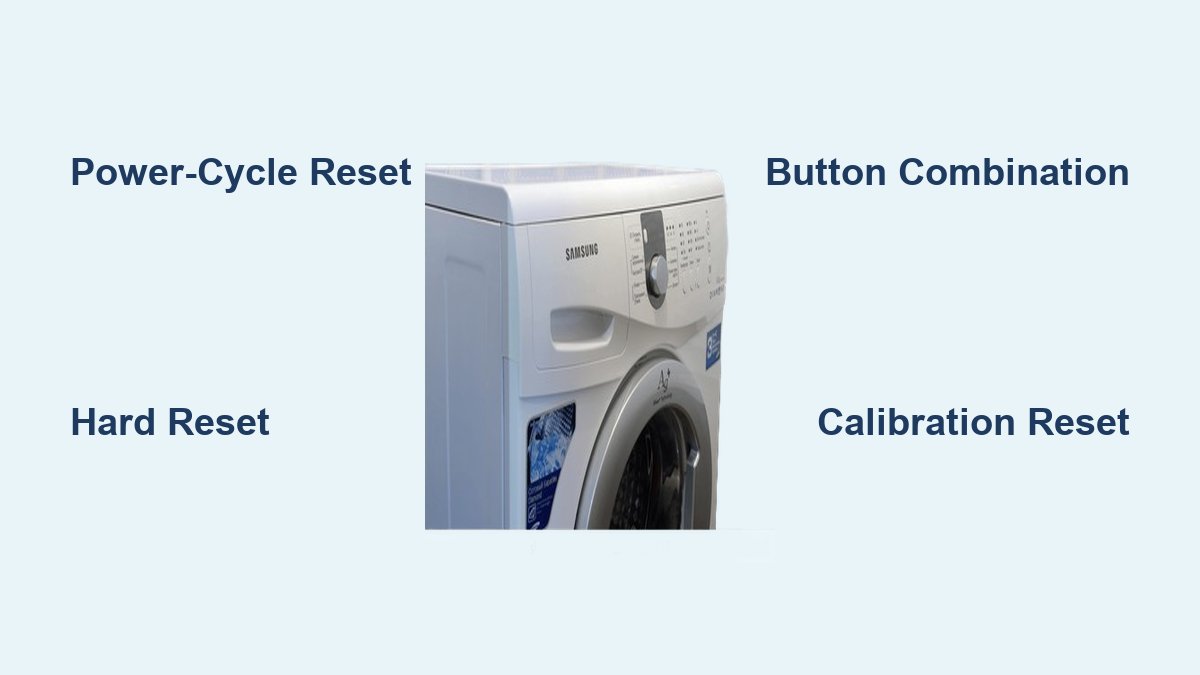
Your Samsung washing machine freezes mid-cycle, displays an unfamiliar error code, or simply refuses to start. You are not alone. Thousands of Samsung washer owners face these frustrating glitches every year. Before you reach for your phone to call a technician, know this: a Samsung washing machine reset often resolves these temporary software issues in minutes. Samsung appliances do not feature a dedicated reset button. Instead, they rely on specific button sequences and power cycles to clear electronic hiccups, restore responsiveness, and recalibrate internal systems.
This comprehensive guide covers every reset method available for Samsung washing machines. You will learn which reset to use based on your specific symptoms, model type, and error codes. We will also show you when not to reset, how to avoid common mistakes, and exactly what to do after a successful reset. Whether you own a basic front-loader or a high-end Bespoke SmartThinQ model, this resource gives you the tools to get your washer back online fast.
Power-Cycle Reset: Fix Frozen Displays and Unresponsive Controls
When your Samsung washer displays nothing, flickers erratically, or stays stuck mid-cycle, start with a power-cycle reset. This soft reset clears temporary glitches stored in the main control board and works on all Samsung washing machine models.
Why Power Cycling Works
The main control board contains temporary memory that can lock up after power surges, software bugs, or electrical interference. Unplugging the machine completely cuts power, allowing capacitors to discharge fully. This enables a clean system reboot when power is restored.
How to Perform a Power-Cycle Reset
- Press the Power button to turn off the washer if it is still responsive.
- Unplug the machine from the wall outlet. Do not simply turn off a nearby switch.
- Wait 5 to 10 minutes. This duration ensures complete discharge of residual voltage in the control module.
- Plug the washer back in and press Power to turn it on manually.
- Run a short test cycle such as Rinse + Spin to verify normal operation.
What to Expect After Power Cycling
- No wash settings or custom programs are erased.
- Wi-Fi credentials, language preferences, and saved cycles remain intact.
- This method resolves approximately 30% of temporary control issues based on field reports.
- If the problem returns immediately after reset, the cause is likely mechanical rather than software-related.
Hard Reset: Clear Deep Firmware Lockups

If a standard power-cycle reset fails to restore function, escalate to a hard reset. This method targets stubborn software freezes that persist after power restoration, especially those occurring after failed updates or SmartThings app conflicts.
When to Use a Hard Reset
- The control panel remains black or completely unresponsive after power restoration.
- Error codes appear repeatedly without any clear triggering event.
- The washer accepts no user input despite confirmed power supply.
Step-by-Step Hard Reset Process
- Turn off the washer using the Power button.
- Unplug the unit from the outlet or switch off the circuit breaker if hardwired.
- Hold the Power button for 10 seconds while the machine remains disconnected.
- Leave the washer unpowered for 30 minutes. This extended duration ensures complete discharge of residual voltage in the control module.
- Restore power and turn the machine on normally.
- Run a Quick Wash cycle to test functionality.
Why 30 Minutes Matters
Extended downtime ensures complete discharge of residual voltage in the control module. This is critical for clearing deep firmware memory that standard power-cycle resets cannot reach. This time-consuming step is often the only solution for persistent lockups in SmartThinQ-enabled models.
Button-Combination Reset: Soft Firmware Restart
For front-load models equipped with digital control panels, a specific button combination can force a soft reset without unplugging the machine. This method proves ideal when accessing the wall outlet proves inconvenient.
Method 1: Power, Soil Level, and Spin Buttons
This combination works best on older WW series models manufactured before 2020.
- Keep the washer powered on.
- Press and hold the Power, Soil Level, and Spin buttons simultaneously.
- Hold for approximately 5 seconds.
- Release all buttons at once. The display may flash or go blank momentarily before resetting.
Method 2: Temperature and Delay End Buttons
This combination appears in newer models and some SmartThinQ units.
- Power on the washer.
- Press and hold the Temperature and Delay End buttons simultaneously.
- Hold for 5 to 10 seconds.
- The machine automatically powers off, indicating the reset has initiated.
- Wait 30 seconds, then press Power to turn it back on manually.
Model Compatibility Notes
- This method does not work on touchscreen-only Bespoke models.
- This method is ineffective on top-loaders without digital control panels.
- Success rates drop significantly for models manufactured after 2020.
- Samsung does not officially endorse a universal button combination. Try both methods if the first fails.
Calibration Reset: Fix Spin and Balance Errors
If your washer displays UE (Unbalanced Load) or FE (Spin Failure) and refuses to spin properly, a calibration reset may be required. This is especially common after moving the machine, installing it on an uneven surface, or overloading the drum.
When to Enter CB Mode
“CB” stands for Calibration, a factory-level mode that recalibrates drum balance sensors and motor alignment. Use this reset when spin cycles fail repeatedly despite redistributing laundry.
Calibration Reset Procedure
- Power on the washer with an empty drum and securely closed door.
- Press and hold the Temperature and Delay End buttons simultaneously.
- After a few seconds, “CB” appears on the display.
- Press the Start button to begin calibration.
- If water remains in the drum, the washer drains completely before rotating.
- Wait 2 to 5 minutes for the process to complete.
- The display shows “Calibration Complete” when finished.
Critical Post-Calibration Steps
- Run a Spin cycle to confirm drum stability and proper rotation.
- Ensure the washer is level and all four feet contact the floor evenly.
- Avoid uneven loads by redistributing bulky items such as towels or blankets.
- Skipping calibration after a factory reset causes vibration, noise, or complete cycle failure.
Factory Reset: Full System Restoration

Use a factory reset only when other methods fail or when preparing to sell or relocate the unit. This reset erases all settings and returns the washer to its original out-of-box state.
When to Perform a Factory Reset
- The control panel is completely unresponsive to all inputs.
- Custom wash programs or settings cause erratic or unpredictable behavior.
- You are selling or moving the washer to a new location.
- Major software issues persist after multiple troubleshooting attempts.
Factory Reset Procedure
- Close the door securely and ensure the drum is completely empty.
- Power on the washing machine.
- Long-press the Start/Pause button until you hear two distinct beeps.
- Use the navigation dial or touchscreen to access the second menu.
- Select Factory Reset using the dial or the circular Select button.
- Confirm your selection.
- The machine powers off automatically.
- Turn it back on manually after the shutdown completes.
What Gets Erased During Factory Reset
- All custom wash programs and favorite cycles.
- Language and display settings.
- Wi-Fi network credentials and SmartThings app pairing.
- Delayed start preferences and scheduled operations.
- You must re-pair with the SmartThings app and re-enter your home Wi-Fi credentials after this reset.
Network (Wi-Fi) Reset: Fix App Connection Issues
If your washer connects poorly to SmartThings or keeps dropping offline, a network reset clears stored Wi-Fi credentials without affecting your wash settings or custom programs.
Network Reset Procedure for SmartThinQ and Bespoke Models
- Hold the Smart Control button for 3 seconds until “AP” appears on the display.
- Hold the Temperature button for 7 seconds until “OK” appears.
- Wait for the display to return to “AP”. This confirms the reset is complete.
- Turn the washer off and restart normally.
What Happens After Network Reset
- The washer enters Access Point (AP) mode, creating a temporary Wi-Fi hotspot.
- Open the SmartThings app and select Add Device.
- Scan the QR code located on the washer or in the manual.
- Follow the on-screen prompts to re-pair and re-enter your home network credentials.
- Use this method when changing routers or updating Wi-Fi passwords without needing a full factory reset.
Error Code Guide: When Resets Are and Are Not Appropriate
Resetting without addressing the root cause leads to recurring errors. Always diagnose the issue first, then reset to clear the code.
Common Error Codes and Required Actions Before Resetting
4E or 4C: Water Not Filling
– Cause: Closed water valves, kinked inlet hoses, or clogged inlet filters.
– Action: Check both hot and cold supply lines. Clean the filters at the hose connections.
– Reset: Power-cycle only after verifying water flows properly.
ND, SE, 5E, or 5C: No Drain
– Cause: Clogged pump filter or blocked drain hose.
– Action: Remove the front panel access cap, unscrew the filter, and clear debris.
– Reset: Power-cycle after cleaning the pump filter.
SUD or Sd: Excessive Suds
– Cause: Using too much detergent or non-HE detergent in an HE machine.
– Action: Run a rinse cycle to clear suds. Switch to HE detergent only.
– Reset: Power-cycle once suds are completely cleared.
UE or FE: Unbalanced Load
– Cause: Uneven laundry distribution or faulty balance sensor.
– Action: Redistribute clothes evenly. Run calibration reset if the error persists.
– Reset: Power-cycle only after redistributing laundry and confirming proper loading.
DL or DE: Door Lock Failure
– Cause: Door not fully closed or debris in the door latch.
– Action: Clean the door seal thoroughly. Ensure the door clicks shut completely.
– Reset: Soft reset after confirming the door closes securely.
Important: Always record error codes before clearing them. Service technicians rely on these logs for accurate diagnosis.
Model-Specific Reset Compatibility

Not all reset methods work on every Samsung washing machine. Check your model type before proceeding.
| Reset Method | Front Load | Top Load | Smart Models | Older Models |
|---|---|---|---|---|
| Power-Cycle | ✅ All | ✅ All | ✅ All | ✅ All |
| Button Combination | ✅ Pre-2020 | ⚠️ Limited | ⚠️ Some | ❌ No |
| Calibration (CB) | ✅ Common | ❌ Rare | ✅ Yes | ❌ No |
| Factory Reset | ✅ Bespoke | ❌ Rare | ✅ Yes | ❌ No |
| Network Reset | ❌ Non-Wi-Fi | ❌ No | ✅ Yes | ❌ No |
When NOT to Reset Your Washer
Resetting is not always the answer. Avoid resetting in these situations.
Persistent Error Codes Return
If 4E, ND, UE, or other error codes keep returning immediately after resetting, an unresolved hardware issue exists. Resetting masks the symptom without fixing a clogged pump, faulty valve, or broken sensor.
Mechanical Failures Occur
- Drum refuses to spin even after balance adjustments.
- Loud grinding or banging noises during operation.
- Water leaking from hoses, seals, or the drum.
- Burning smell indicating electrical problems.
Resetting does not repair broken mechanical components. Contact a professional technician for these issues.
Frequent Reset Needs
If you find yourself resetting the washer weekly, the control board may be failing or firmware may be corrupted. Repeated resets erase diagnostic data, making future repairs more difficult.
Power Instability Exists
Avoid resetting during thunderstorms, brownouts, or power fluctuations. Sudden electrical changes can damage sensitive electronics mid-reset.
Post-Reset Steps: Verify and Reconnect
After any reset, especially factory or calibration resets, follow these verification steps to ensure full functionality.
Re-Calibrate After Factory Reset
- Long-press the Start/Pause button until two beeps sound.
- Navigate to Calibration in the menu using the dial.
- Press the Select button to confirm.
- Wait 2 to 5 minutes for the drum to rotate and recalibrate.
- Watch for “Calibration Complete” on the display.
- Skip this step and you will experience spin errors, excessive vibration, or cycle failures.
Reconnect to SmartThings
- Open the SmartThings app on your smartphone.
- Tap the + icon to add a new device.
- Select Washer from the appliance list.
- Scan the QR code on the washer or enter the model number manually.
- Follow the prompts to re-pair with your home Wi-Fi network.
- Verify remote control functionality works from the app.
Run a Test Cycle
- Power on and observe the startup sequence for stability.
- Test touch responsiveness across all buttons and menus.
- Run a Quick Wash cycle and verify: water intake functions properly, drum rotates smoothly, drainage completes fully, and no error codes appear.
- Confirm app remote control works if you have a smart model.
- If any step fails, do not repeat the reset. Contact Samsung support instead.
Maintenance Tips to Prevent Future Resets
Most reset needs stem from poor maintenance. Follow these practices to reduce errors significantly.
- Clean the pump filter monthly behind the front access panel.
- Inspect inlet and drain hoses every 6 months for kinks, cracks, or blockages.
- Use only HE-rated detergent in the correct amounts. Regular detergent causes excessive suds.
- Never overload the drum. Fill to only three-quarters capacity.
- Leave the door and detergent drawer open after use to prevent mold and moisture buildup.
- Run a maintenance wash monthly using bleach or a dedicated washer cleaner.
Field data shows proper care reduces error frequency by up to 70%.
When to Call a Professional Technician
DIY resets have limits. Escalate to professional service when you observe these warning signs.
- Error codes return after multiple reset attempts.
- The washer refuses to power on despite confirmed good outlet power.
- Water remains in the drum after the drain cycle completes.
- Visible wiring damage, scorch marks, or burning smells occur.
- The unit remains under warranty. Unauthorized repairs may void coverage.
Samsung Support Resources
- U.S. Customer Support: 1-800-SAMSUNG (726-7864)
- Service Center Locator: Available at samsung.com/us/support/service-center
- Online Diagnostics: Available through the Samsung Members app
- Warranty Check: Enter your model and serial number online
Use only Samsung-certified technicians for warranty-covered repairs.
Frequently Asked Questions About Samsung Washing Machine Reset
How do I reset my Samsung washing machine without unplugging it?
Use a button-combination reset for front-load models. Hold Power + Soil Level + Spin for 5 seconds on older models, or Temperature + Delay End for 5 to 10 seconds on newer models. The machine resets without needing to access the power outlet.
Why does my Samsung washer need to be reset?
Samsung washers may need resetting due to temporary software glitches, power surges, firmware bugs, or communication errors between the control board and other components. Resets clear these transient issues and restore normal operation.
Does resetting a Samsung washer erase all my settings?
It depends on the reset type. A power-cycle reset preserves all settings. A factory reset erases custom programs, Wi-Fi credentials, language preferences, and all user configurations. A network reset only removes Wi-Fi information.
How long should I unplug my Samsung washer to reset it?
For a standard power-cycle reset, wait 5 to 10 minutes to ensure complete discharge of the control board capacitors. For a hard reset targeting deep firmware issues, wait 30 minutes while holding the Power button.
Why does my Samsung washer still not work after resetting?
If problems persist after resetting, a hardware issue likely exists. Common causes include a faulty pump, broken door latch, malfunctioning control board, or sensor failures. Contact a Samsung technician for diagnosis.
Key Takeaways for Resetting Your Samsung Washing Machine
A Samsung washing machine reset resolves most temporary software issues including frozen displays, unresponsive controls, and error codes. Start with a simple power-cycle reset for quick fixes. Escalate to hard reset for persistent lockups, calibration reset for spin problems, or factory reset for complete system restoration.
Always troubleshoot the root cause first before resetting. Document error codes, check water supply and drainage, and verify proper loading before performing any reset. Skipping this step leads to recurring errors and wasted time.
Combine smart resetting with routine maintenance including monthly filter cleaning, proper detergent use, and leaving the door open between loads. This combination keeps your Samsung washer running smoothly for years and minimizes the need for future resets. For model-specific guidance, visit Samsung’s official support site and enter your serial number for tailored troubleshooting assistance.